Hosting an Event
Publish an event, copy a previous one, or set up a repeating series.
Events are a great way to bring your community together. Whether you're organizing in-person meetups, online gatherings, or hybrid experiences, Radius makes it easy to manage RSVPs and communicate with attendees.
Before you begin
Please ensure you've read our community guidelines before creating an event. These guidelines help maintain a positive and inclusive environment for all participants.
Note: You must be an organizer of a group to create events. If you haven't created a group yet, start here.
Getting started
Creating an event takes just a few steps:
- 1Navigate to your group's page
- 2Click the
Create Eventbutton - 3Fill in your event details
Copying from a previous event
If your group already has at least one event, you'll see a shortcut at the top of the event creation form. You can use a previous event as a template so details like description, location, and settings are pre-filled. Then update the title, date, and anything else you need.
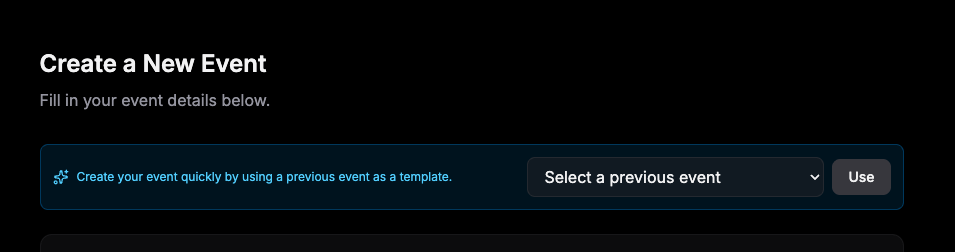
How to use it:
- 1Go to your group and click
Create Event - 2In the blue box at the top, open the Select a previous event dropdown and pick the event you want to copy from
- 3Click
Useto load that event's details into the form - 4Change the title, date and time, and any other fields you need, then save your new event
Tip: Copying from a previous event is handy for one-off repeats. For regular meetups, use recurring events instead. Radius will create future instances automatically.
Recurring events
For regular meetups (a weekly run club, fortnightly book group, or monthly social) you can turn on Repeats when creating an event. Fill in your title, description, location, and first date as usual; those details become the template for every future instance.
Recurring events are free for all groups. Each date in the series is a normal event with its own RSVPs, attendees, and reminders.
Read more in our blog post about recurring events.
Setting the schedule
In the Repeats section of the create event form you can choose:
- Frequency: every week, every 2 weeks, or every month
- Day: which weekday (or day of month) the event falls on
- Upcoming events to show: how many future dates stay visible at once (1–3)
- Publish one at a time: optional. Only one upcoming event is public; the next goes live when the current one ends
- Include date in event title: optional. Append the date to each instance title (for example, "Book Club – 15 Jul")
Note: Your Starts at and Ends at times set the first occurrence and the duration for every instance in the series.
Editing recurring events
When you edit an event that belongs to a series, Radius asks how far your changes should apply, similar to Google Calendar:
| Scope | What changes |
|---|---|
| This event only | Updates only the date you're editing. The series continues; other dates are unchanged. |
| This and following events | Updates this date and all future instances that haven't been customised individually. Past events are not changed. |
From an event page, organisers can open Manage series to see the schedule, upcoming instances, and pause or end the series.
Cancelling recurring events
On the edit event page, the cancel section offers two options for series events:
- Cancel this event only: cancels one date and notifies its attendees. The series keeps running and skips that date in future.
- Cancel this and following events: cancels this date and all future instances, notifies affected attendees, and ends the series.
Event details
Configure your event with these essential details:
| Setting | Description |
|---|---|
| Cover Image | Landscape image (1200x400px recommended) displayed at the top of your event page |
| Title | A clear, descriptive name for your event |
| Description | Full details about what attendees can expect |
| Date & Time | Start and end times (timezone auto-detected) |
| Location | Physical address or online meeting link |
| Attendance Limit | Optional cap on the number of attendees |
Tip: Need high-quality images? Check out Unsplash for free, professional photos.
Additional settings
Fine-tune your event with these optional settings:
Event visibility
| Option | Description |
|---|---|
| Published | Visible to everyone in search and on your group page |
| Draft | Hidden until you're ready to publish |
| Unlisted | Only accessible via direct link |
Online events
For virtual gatherings, mark your event as online and add your meeting platform link. You can include any technical requirements in the description.
Pricing
Events can be free or paid. For paid events, set your price, currency, and add a ticket purchase link to your preferred ticketing platform.
Note: Radius doesn't process payments directly. You'll need to use an external ticketing service for paid events.
Event enhancements
Optional extras help attendees know what to expect. On the event form, schedule, speakers, food & drinks, and facilities sit in collapsible sections. They start collapsed on new events so the form stays focused on the essentials.
Read more about speakers, dietary options, and facilities in our October 2025 updates blog post.
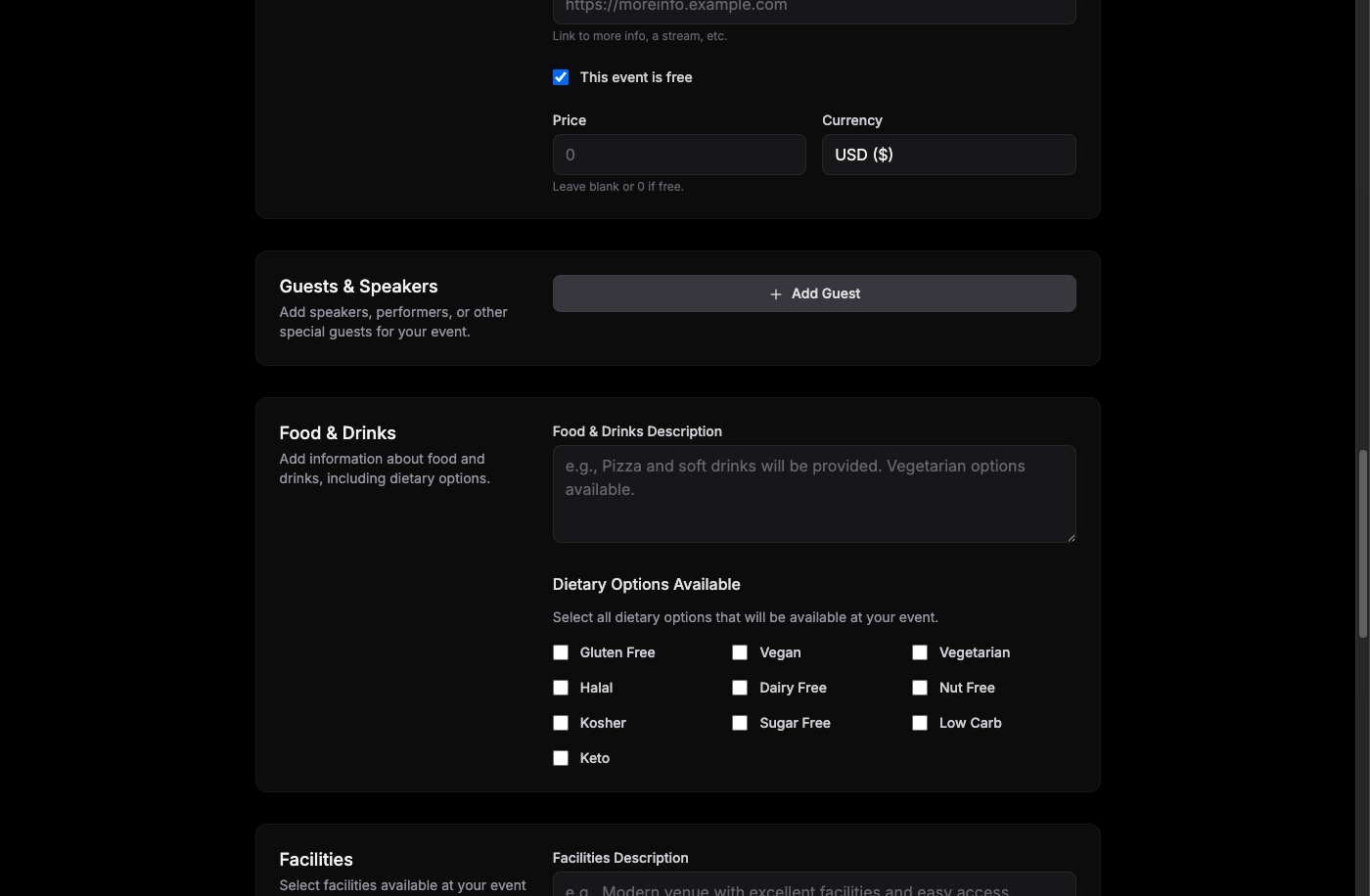
Event schedule
For conferences, workshops, and meetups with a structured agenda, add a run-of-show timeline. Each schedule item can include:
- A title (for example, "Welcome & registration" or "Opening keynote")
- Optional start and end times within your event window
- An optional speaker name
- A short description of what happens during that segment
Attendees see the schedule on your event page as a timeline: times on the left, details on the right. Items without times still appear with a "TBD" label so you can outline the flow before finalising timings.
Read more in our blog post about event schedules.
Event speakers
Showcase the speakers or presenters at your event. For each speaker you can add:
- Name and title/role
- Photo or avatar
- Bio or description
- Social media links
Dietary information
If your event includes food and drinks, let attendees know what's available. You can specify:
- Food options (snacks, full meals, etc.)
- Drink options (soft drinks, alcohol, coffee, etc.)
- Dietary accommodations (vegetarian, vegan, gluten-free, etc.)
- Whether food is included or available for purchase
Venue facilities
Help attendees prepare by listing available facilities at your venue:
- Wheelchair accessibility
- Parking availability
- WiFi access
- Restroom facilities
- Air conditioning or heating
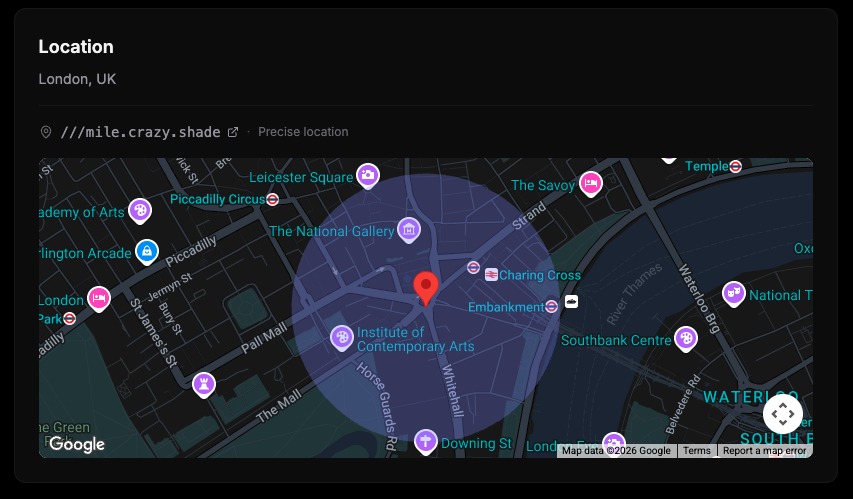
what3words location
For venues that are hard to find with a regular address, you can add a what3words address. This provides a precise 3-meter square location using three simple words, making it easy for attendees to find exactly where to go. Learn more in our blog post about what3words locations.
Tip: what3words is especially useful for outdoor events, venues within larger complexes, or locations without a standard street address.
Next steps
Once your event is created, here's what you can do: