Posting an Activity
Share what you are up to, find people nearby, and arrange meetups through interests.
What people see after you post

Alex is cycling in an hour — others welcome.
I'm going for a cycle in an hour — anyone coming?
Activities let you share what you are up to, whether that is a coffee, a run, or a cycle, and find others nearby who share that interest. They are quick to post, show on your profile and the activity feed, and can appear on the members map when you are open to meeting.
Overview
Post from your activity feed or the dedicated Post an activity page. Both use the same form. Pick a type, choose a category and activity, then add optional details.
Two ways to post
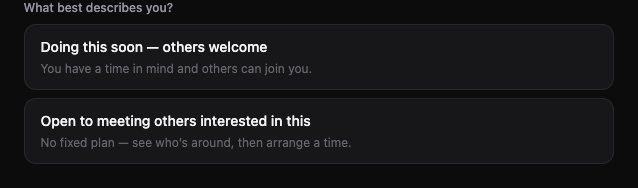
Every activity starts with one of two options. Pick the one that matches your situation:
| Type | Best for |
|---|---|
| Doing this soon — others welcome | You have a time in mind and want others to join you. Set when (today, tomorrow, this weekend, or a specific time), a meeting point, and how many people can come. |
| Open to meeting others interested in this | No fixed plan yet. You want to see who is around. Shows on your profile until you turn it off. When you are ready to meet, post a follow-up with a time. |
Getting started
- 1Open the Post an activity page, or expand the composer on your activity feed
- 2Choose your activity type (doing soon or open to meet)
- 3Pick a category, then search for the activity (e.g. Coffee, Cycling)
- 4Add optional details, location, and who can join
- 5Post. Your activity appears on your profile and, depending on settings, the feed and map
Location: Pick a cafe, park, or venue, not a home address. Only the general area is shown until someone joins your activity.
Safety: Meet in public spaces, tell a friend where you are going, and trust your instincts.
Visibility and access
Under Who can join? you choose who can request to join your activity:
| Setting | What it means |
|---|---|
| Anyone | Listed on Discover, the feed, and the members map. Anyone signed in can join. |
| Only people you follow | Not listed publicly. Only people you follow can join. Share the link if you want others to view it. |
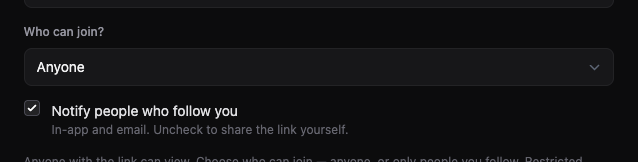
Anyone with the link canview an activity. Joining is what the setting controls. For restricted activities, only people you follow can join.
The notify checkbox sends an in-app and email notification when you post. For public activities it goes to people who follow you; for restricted ones, to people you follow.
Time voting
Fordoing soon activities, you can pick a quick preset (Today, Tomorrow, This weekend, or Next week) instead of a fixed time. Radius suggests several time slots and participants vote for what works.
- 1You post with a preset (e.g. Tomorrow)
- 2People who join tap the times that suit them
- 3You confirm the final time when you are ready. The most popular slot is highlighted


ChoosePick a time if you already know exactly when you are meeting. That locks in one time with no voting.
Following and discovery
Activities work best when you are connected to people on Radius. Here is how discovery fits together:
- Follow people from their profile. You will see their public activities in your feed
- Followers see your public activities when you post (if you leave notify on)
- Discover and the members map show public activities from people nearby
- Open to meet activities stay on your profile so others can see you are interested, even without a set time
View who you follow on Following and who follows you on Followers from your profile.